All posts in “Software”

Tutorial: Mesh Render in Maya

This is a write-up of this video, mostly so I don’t have to watch the video every time I want to mesh render something.

  1. Go to “Windows” -> “Rendering Editors” -> “Hypershade”.
  2. Create a new Lambert shader, and open its attributes.
    1. Set “Color” to black.
    2. Set “Diffuse” to 0.
  3. Right-click-hold on shader to assign it to all objects.
  4. Click “Output” icon in shader attributes (arrow in a box next to “Presets”.
  5. Open “mental ray”, and “Contours”.
    1. Tick on “Enable Contour Rendering”.
    2. Set “Color” to white.
    3. Set “Width” to 0.25 or 0.5.
  6. Go to “Windows” -> “Rendering Editors” -> “Render Settings”.
  7. Set “Render Using” to “mental ray”.
  8. Go to “Features” tab, and open “Rendering Features”.
    1. Set “Primary Render” to “Raytracing” under “Rendering Features”.
    2. Set “Secondary Effects” to “Raytracing” under “Rendering Features”.
  9. Open “Contours” in the same tab.
    1. Tick on “Enable Contour Rendering”.
    2. Set “Over-Sample” to 3.
    3. Set “Filter Type” to “Gaussian Filter”.
  10. Open “Draw By Property Difference” in the same tab.
    1. Tick on “Around all poly faces”.
  11. Render your image, and you should see something like this:

I found something to love about Windows 7

I’ve been using Windows 7 for a couple of weeks now, and I don’t want to sound like an angry Apple fanboy, but I’m really not that happy with it. It all seems nice on the surface, but if you scratch it a bit you find the same old problems. Regardless, I found one feature today that I absolutely love. It’s very simple, when you’re copying or moving file(s), the progress is shown on the icon for Windows Explorer, like this:

Genius.

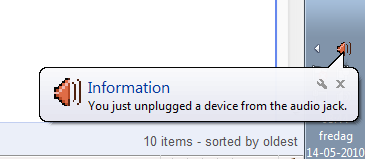
Windows 7 Likes to Tell You Stuff

I recently installed Windows 7 for work-related purposes, and I think this screenshot is a pretty good represenation of my experience with the operating system so far.

Come on.

Optimizing Your Computer Use #1: Firefox Search Keywords

I’m a huge fan of optimizing the way I use my computer, if I stumble upon a task I know I will be doing in the future (e.g. looking up opening hours for the local grocery store) I usually try to make this task easier. So I’ll write a couple of articles about what techniques I use to do these things, the first being Firefox search keywords, which I’ve talked about before.

Firefox has a built in function that lets you add keywords for search fields on websites by right-clicking them and pressing “Add a Keyword for this Search”. This makes it possible to make a search on a site by typing “<keyword> <search term>” in the address bar (e.g. “i die hard” searches IMDb for “die hard”). This obviously has a lot of possibilities, and it’s probably the one thing that saves me the most time on a day to day basis. I use the following keywords:

  • Google
    A standard Google search. Type “g <search keyword>”.
  • Keepvid
    Download video from sites like YouTube, Metacafe, etc. Type “d <video URL>”.
  • Port Check
    Checks if a certain port is open. Type “p <port number>”.
  • Google Maps
    Searches Google Maps. Type “gm <location>”.
  • Google Maps – Directions From Home
    Search for a direction from your home. Change “blegdamsvej 78A, københavn ø, denmark” to your own address. Type “gmd <destination>”.
  • Google Translate
    Type “gt <text or url>” to translate something from English.
  • YouTube
    Search on YouTube. Type “y <search term>”.
  • WikiPedia
    Search on WikiPedia. Type “w <search term>”.
  • IMDb
    Search on IMDb. Type “i <search term>”.
  • Kino
    Search on Kino.dk Type “k <search term>”.
  • RottenTomatoes
    Search on Rotten Tomatoes. Type “rt <search term>”.
  • Play.com
    Search on Play.com Type “p <search term>”.
  • UrbanDictionary
    Search Urban Dictionary. Type “u <search term>”.
  • Ordbogen
    Search on Ordbogen.com. Type “o <search term>”.
  • Google Currency Converter
    Convert money to Danish Kroner. Type “dkk <amount and currency>” (e.g. “dkk 50 usd”).
  • Google Currency Converter (USD)
    Convert from US Dollars to Danish Kroner. Type “usd <amount in US Dollars>”.
  • Google Currency Converter (EURO)
    Convert from Euro to Danish Kroner. Type “euro <amount in Euro>”.
  • Google Currency Converter (POUNDS)
    Convert from Pounds to Danish Kroner. Type “pounds <amount in Pounds>”.
  • Dansk Wiki
    Search on the Danish WikiPedia. Type “dw <search term>”.
  • Wiktionary
    Search on Wiktionary. Type “wi <search term>”.
  • Amazon.co.uk
    Search on Amazon.co.uk. Type “a <search term>”.
  • Filestube
  • Search for files on Rapidshare. Type “f <search term>”.

You can follow these steps to import my keywords:

  1. Right-click on my Search Keywords bookmarks file and choose “Save Link As…” Place the file somewhere on your computer.
  2. In Firefox, from the Bookmarks menu, choose “Manage Bookmarks”.
  3. From the Bookmarks Manager File menu, choose Import. Choose “Import Bookmarks from File.” Browse to and open the file you just saved.

The next article will be about Greasemonkey scripts.

New Theme

I’ve been using the old theme for a couple of years, and in that time I’ve changed the code a lot, and recently my changes have started breaking plugins, and I have no idea what the cause is. Today I was looking for a nice movie rating plugin, I found an amazing one, but once again it looked broken. So I finally decided to look for a new theme. I’m pretty satisfied with this one, although it probably won’t be the final one.

The movie rating plugin can be seen in action on the “I Watch” page.